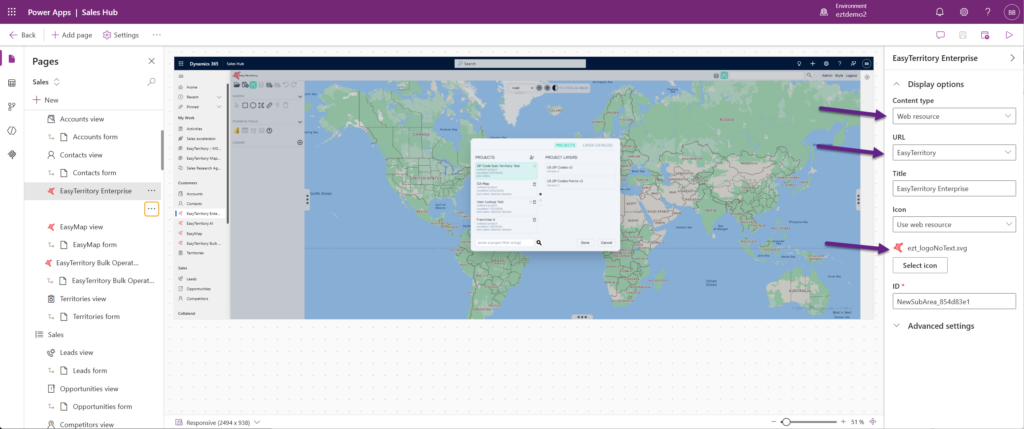

EasyTerritory Designer can be embedded into Dynamics 365 as an external application to give users a seamless experience without leaving Dynamics. Here are the setup steps:
1. In Dynamics 365, create a new web resource with the following code:
<html><head>
                 <meta charset="utf-8">
                 <title>EasyTerritory Designer</title>
    </head>
        <body style="overflow-wrap: break-word;">
                 <iframe src="https://apps.easyterritory.com/(YOUR GUID)/APP/index.aspx?useIdpPopup=true" style="margin: 0px; padding: 0px; border: currentColor; border-image: none;
                               left: 0px; top: 0px; width: 100%; height: 100%; right:0px; bottom:0px;
                               overflow:hidden; position:fixed; z-index: 999999;">
                 </iframe>

</body></html>
For the source URL, you can add additional parameters to have the application load with:
https://apps.easyterritory.com/(YOUR GUID)/APP/index.aspx?useIdpPopup=true&projectId=(YOUR PROJECT GUID)
useIdpPopup=true will force an IdP popup for the SSO. Use this parameter if your site is integrated with Azure AD.
projectId=(YOUR PROJECT GUID)
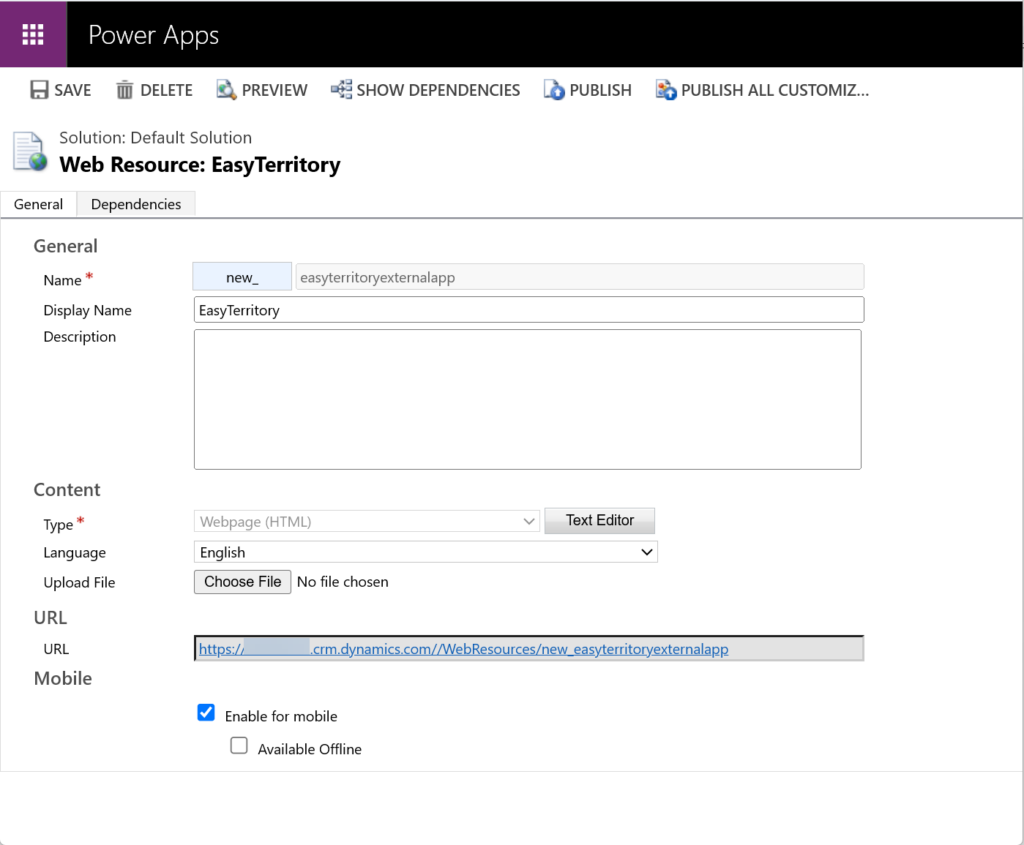
2. In the Dynamic 365 Site Map editor, Create a new Nav Page that references the Web Resource.