

Geocoding is the process of determining latitude and longitude coordinates from an address. In Dynamics 365, having latitude and longitude set on records such as Leads or Accounts is required for territory management and Advanced Find mapping in EasyTerritory.
The Geocoding Workflow Plugin for Dynamics 365 is a workflow activity that reads address values from a record and returns latitude and longitude values. These values can then be used to update the record in a subsequent workflow step.
Typically, this workflow is configured to trigger when:
- A new record is created, or
- Address information on an existing record changes
EasyTerritory leverages either Microsoft Bing Maps or Azure Maps for geocoding. Both services provide highly accurate, global geocoding results.
Setup Steps
Step 1. Install the EasyTerritory Managed Solution
Install the EasyTerritory managed solution into Dynamics 365.
You can obtain the solution from the Microsoft Marketplace.
Step 2. Create a New Workflow
Once the EasyTerritory managed solution is installed:
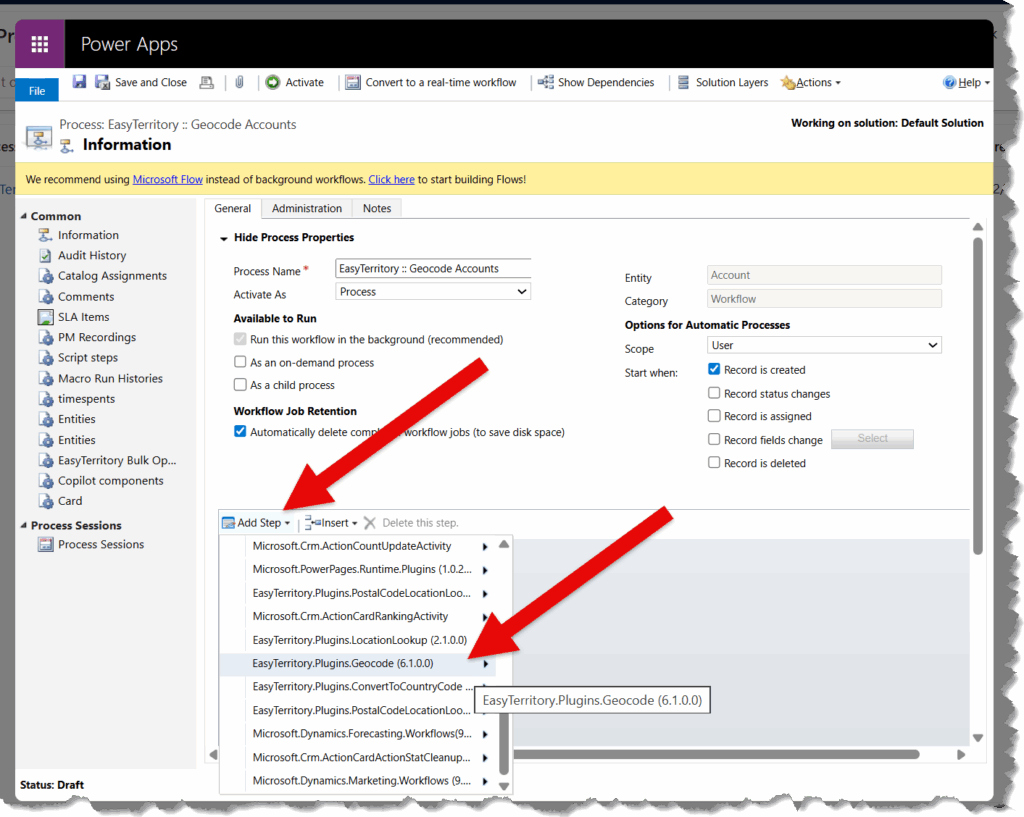
- Create a new Workflow in Dynamics 365.
- Add the Geocoding workflow activity to the process.
Step 3. Configure the Geocoding Step
Configure the properties on the Geocode step as follows:

- EasyTerritory URL
The URL to your EasyTerritory instance.
Example: https://apps.www.easyterritory.com/{INSTANCE_GUID}/{INSTANCE_TYPE} - Bing Key
A valid Bing Maps or Azure Maps key.
For more details on obtaining a key, refer to the Microsoft documentation. - Street Address
Use the Form Assistant to select the address field.
Example:address1_street1 - City
Example:address1_city - State
Example:address1_stateprovince - Zip
Example:address1_postalcode - Country
Defaults toUS, or use the Form Assistant to select a field.
Example:address1_country
Deprecated Configuration Properties
The following properties are deprecated and should not be used in new workflows:
- Encrypted Username
- Encrypted Password
- LookupMap
- LookupLayer
- LookupLayerNameField
Use either the Location Lookup plugin or the Postal Code Lookup plugin instead.
Step 4. Create an Update Record Step
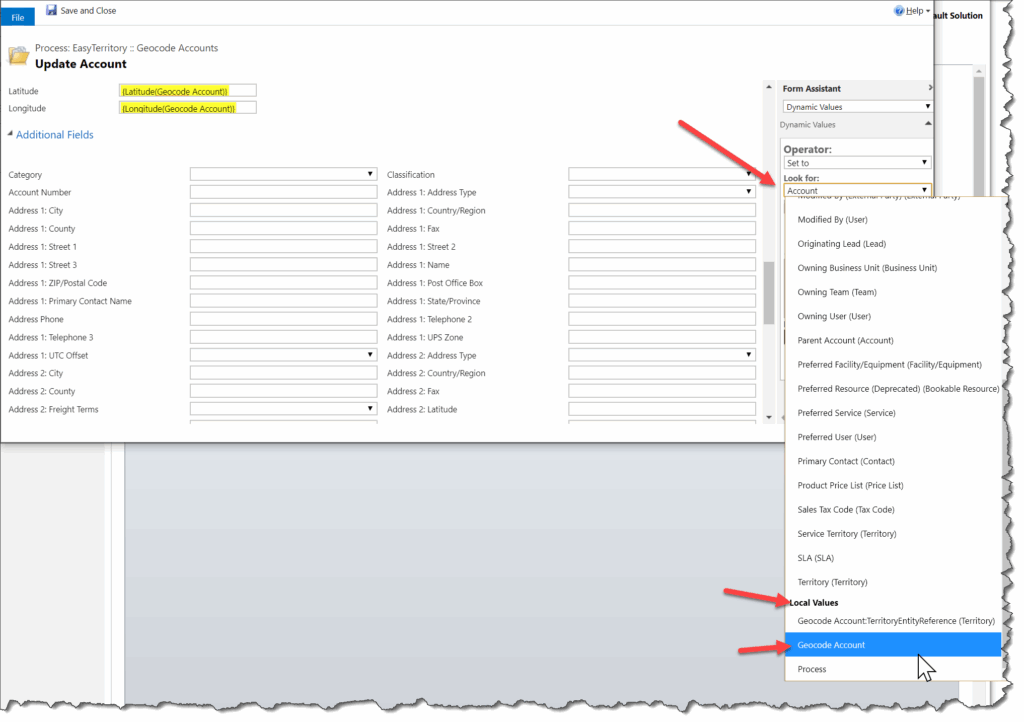
Use the Form Assistant to access values returned from the Geocode step.
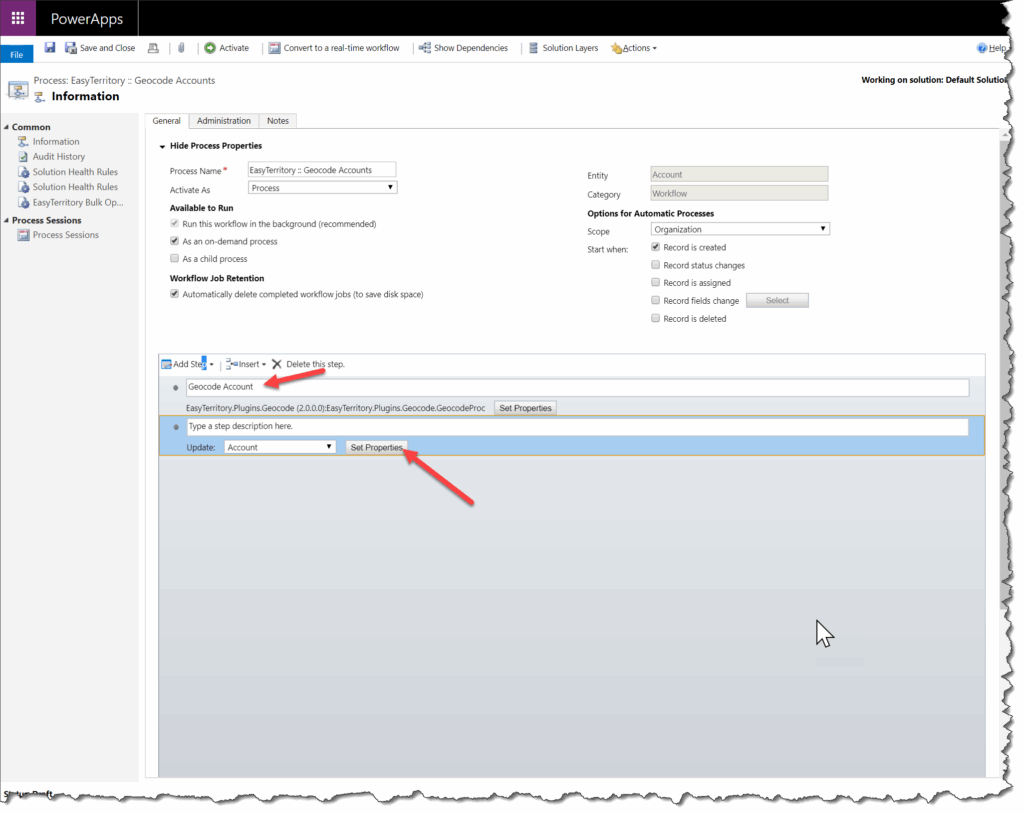
Add an Update Record step after the Geocode step.
Note the name of the previous step (for example, Geocode Account).
Step 5. Set Latitude and Longitude Fields
Configure the latitude and longitude fields based on their data type:
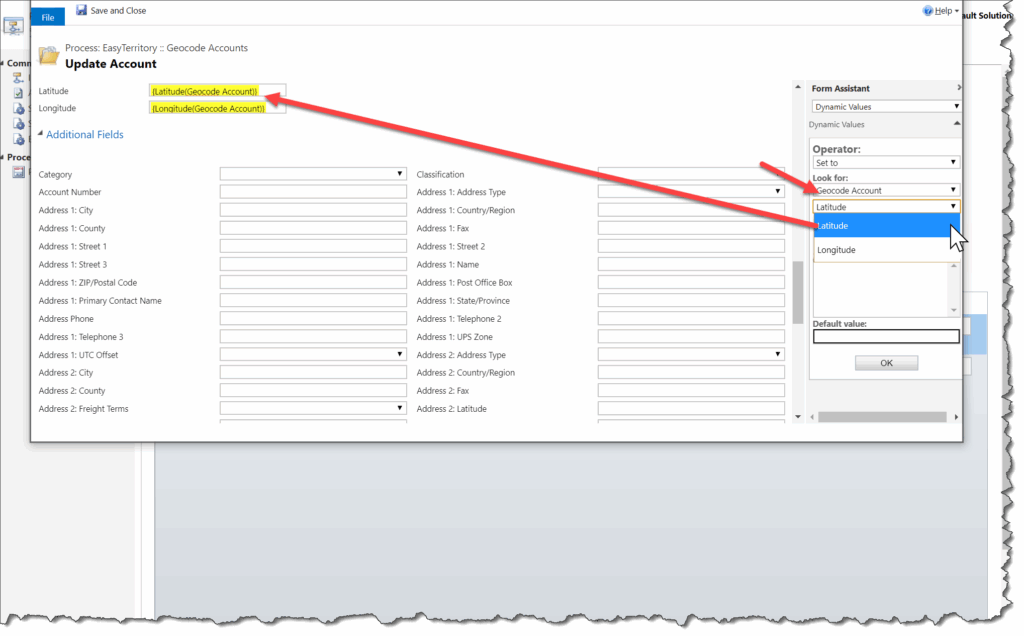
Latitude & Longitude
Use these outputs when the target fields are of type Floating Point or Decimal Number.
LatString & LongString
Use these outputs when the target fields are of type Single Line of Text
Additional Returned Fields
The Geocoding plugin also returns additional values that can be stored on the record.
Quality
Indicates the accuracy of the geocode result.
This should be stored in a Single Line of Text field.
Returned values:
- Bing Maps: High, Medium, Low
- EasyTerritory service: Best, Good, Fair, Poor
Mapping behavior:
- Bing High → Best or Good
- Bing Medium → Fair
- Bing Low → Poor
Match Fields
The following fields return standardized (cleaned) address components and should be stored as Single Line of Text fields:
- Match Address
- Match City
- Match County
- Match State
- Match Country
- Match Full Address
- Match Postal Code (Zip 5 and Zip +4)
- Match Zip 5 (Zip 5 only)
- Match Zip 4 (Zip +4 only)
Geocoding Existing Records
After activating your geocoding process, you’ll need a way to geocode all existing records.
- Small datasets:
Use Advanced Find and run the workflow on demand. - Large datasets (thousands of records):
Use the EasyTerritory Bulk Operation Utility.
Mapping Geocoded Records
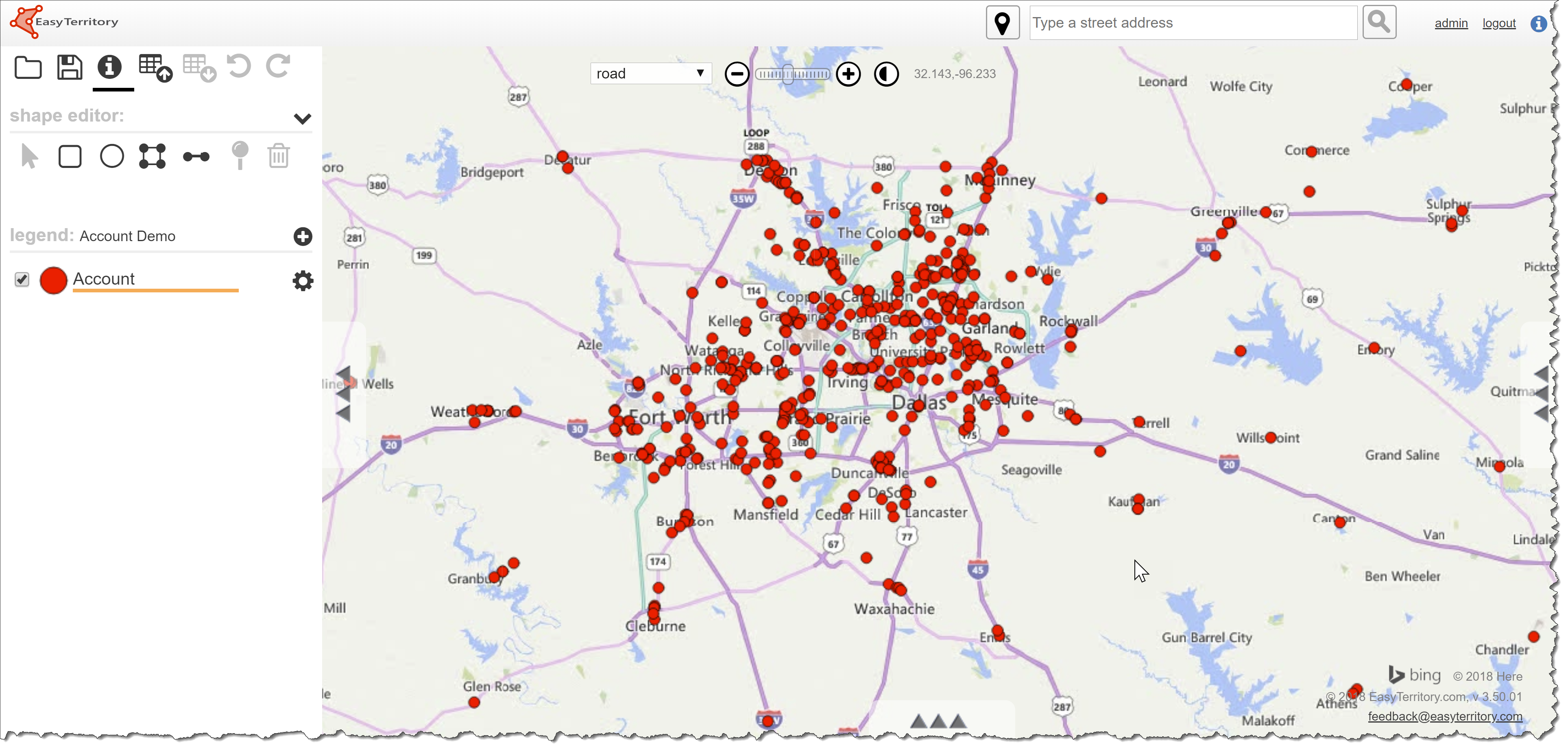
Once your data has been geocoded, you can create an Advanced Find view and map the records using EasyTerritory.
Follow the standard steps to build your Advanced Find view and display the results on the map.
Note
The Geocoding Workflow Plugin is intended for server-side, automated geocoding triggered by record creation or address changes. For interactive or map-based geocoding scenarios, use EasyTerritory project-based tools instead.
Quality: How accurate the geocode is. This should be a ‘Single Line of Text’ field. The Bing Geocoding service returns the following values: High, Medium and Low. The EZT service returns Best, Good, Fair, and Poor. Bing “High” confidence values map to “Best” or “Good” based on secondary information, “Medium” maps to “Fair”, and “Low” to “Poor”.