

Overview:
EasyTerritory (version 3.76.00+) supports Windows ADFS using OpenID- Connect authentication protocol. ADFS is a Single sign-on (SSO) feature that enables a user to login to the EasyTerritory application through ADFS sign-on page. ADFS will authenticate the user using Active Directory credentials and direct them to EasyTerritory to access the application.
Advantages:
The advantages of leveraging Windows ADFS with your EasyTerritory application are:
– Simple streamlined SSO access to your EasyTerritory application through company’s Windows ADFS sign-on page.
– Strengthens security with users not needing to remember additional usernames and passwords.
– Ability for companies to control users’ access to EasyTerritory within their Active Directory.
– User’s detail information is stored in Active Directory not in EasyTerritory.
– Supports multi-factor authentication (MFA).
Prerequisites
– You will need to install ADFS on Windows 2016 or above.
Windows ADFS Configuration Steps:
1. On your Windows ADFS server, go into the ADFS Management Console
- Click ‘Application Groups’ then ‘Add Application Group’
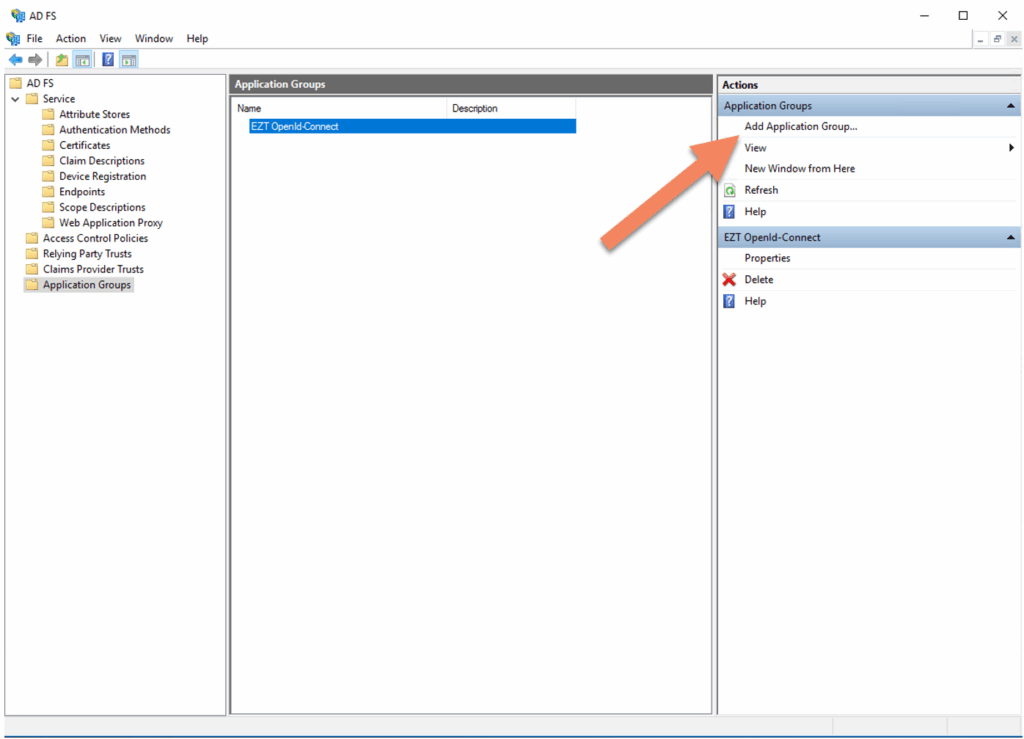
2. In the ‘Add Apllication Group Wizard’ enter the following:
- Give the Application a friendly name.
- Select ‘Web browser accessing a web application’
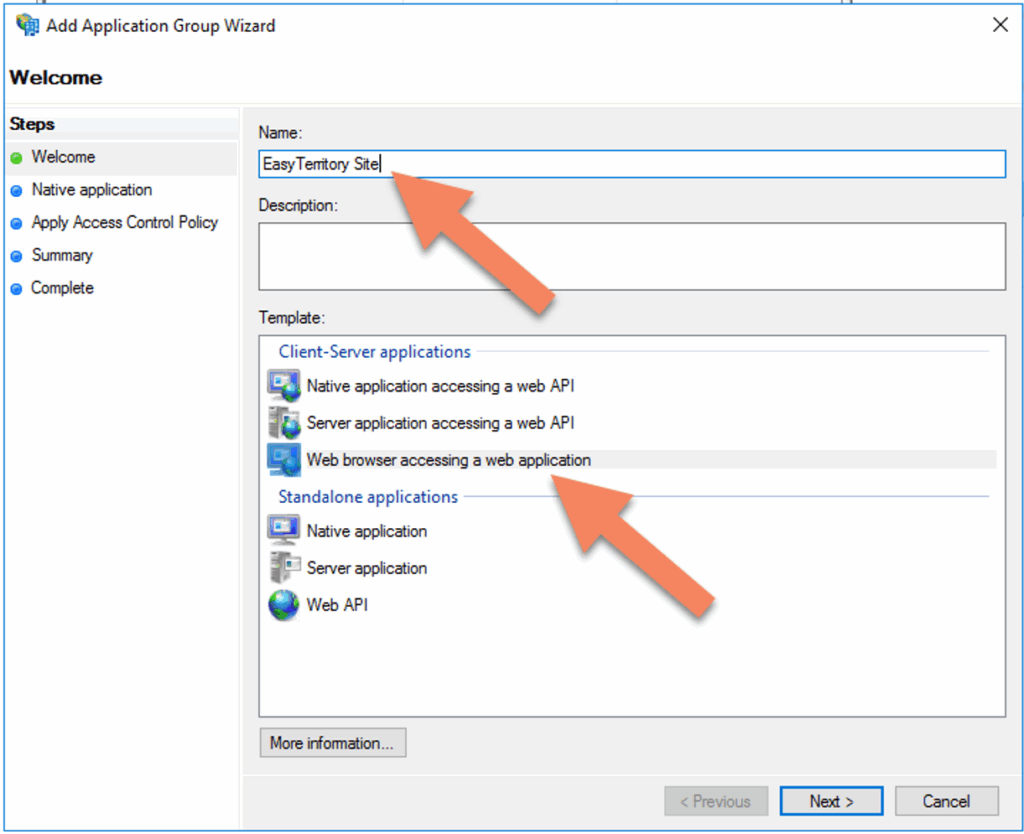
3. Click ‘Next’ and the following properties:
- In ‘Redirect URI’ enter your EasyTerritory redirect URI. ie: https://apps.www.easyterritory.com/GUID/app/index.aspx
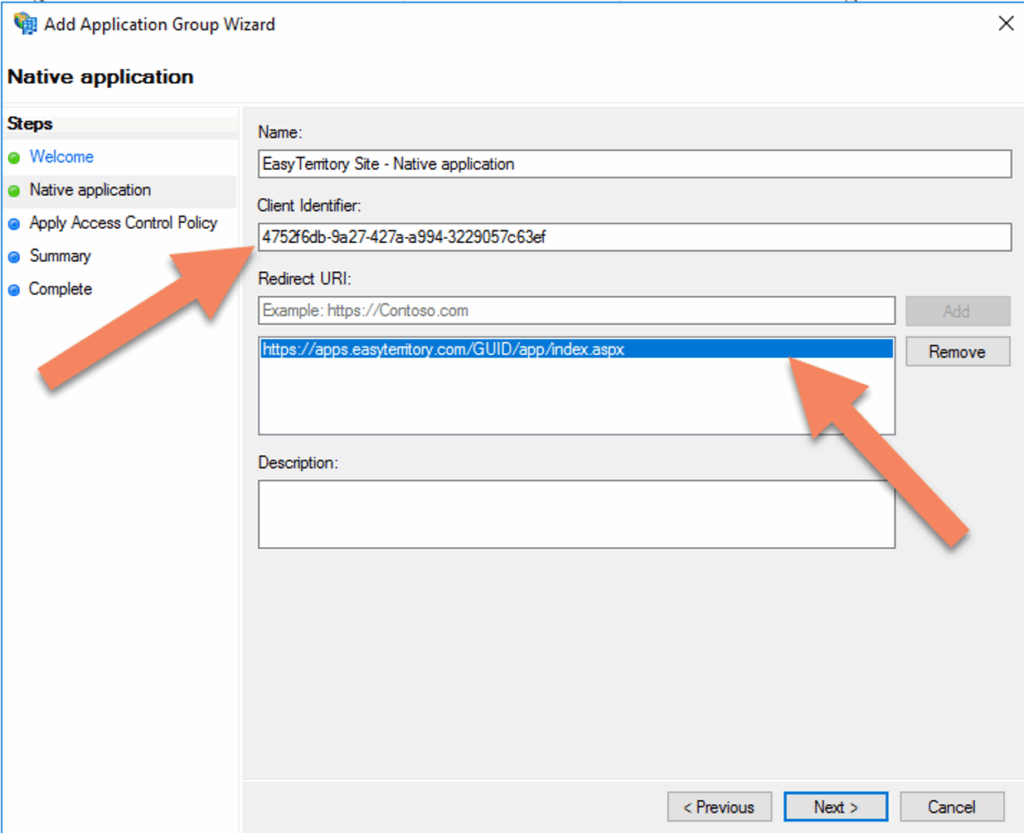
4. Click ‘Next’ and choose and access control policy (optional):
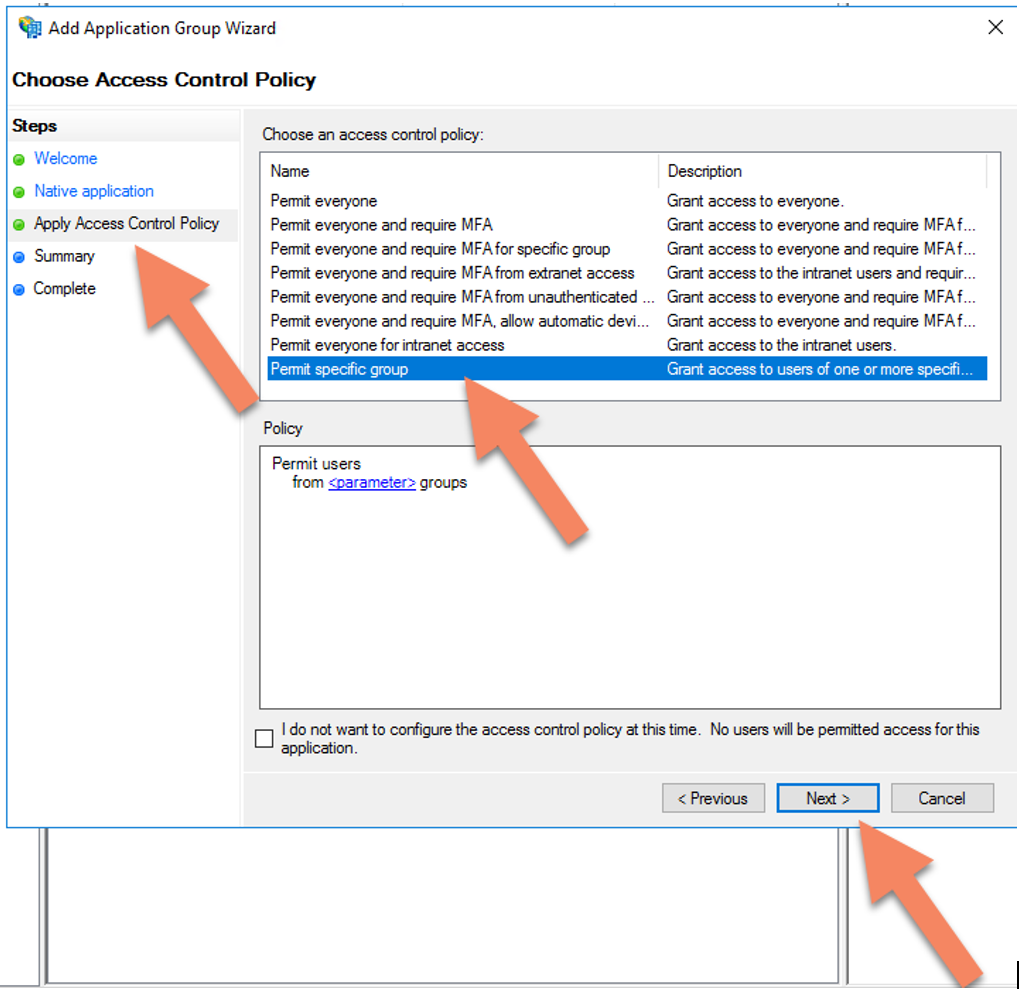
Select a group located in your Active Directory.

5. In the AD FS Management console. Select the target Application Group and in the properties console select Web Application and click edit.

Select ‘Issuance Transform Rules’ tab and click ‘Add Rule…’
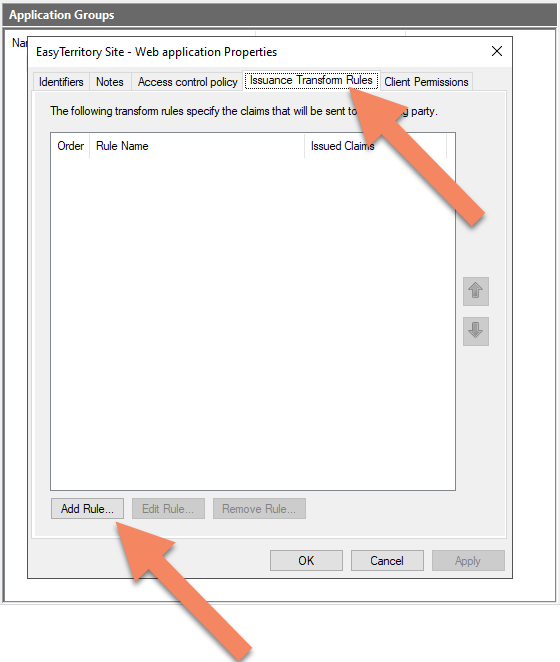
Select ‘Send LDAP Attributes as Claims’ in the dropdown and click next.

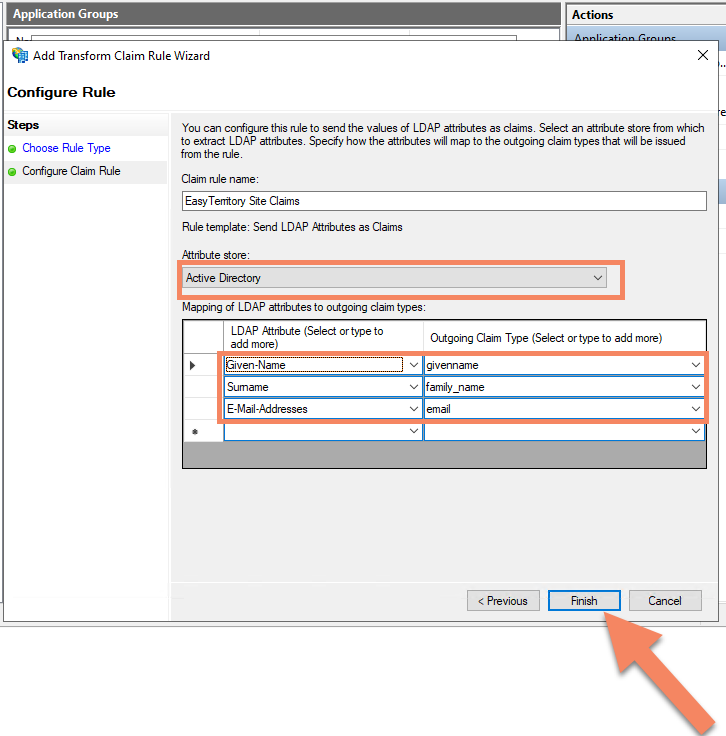
- In the Add Transform Claim Rule Wizard, configure the following properties:
- Attribute Store: Active Directory
- Mapping of LDAP attributes to outgoing claim types:
- In LDAP attribute column, select dropdown ‘Given Name’. In Outgoing Claim Type, type ‘givenname’ (this is case sensitive).
- In LDAP attribute column, select dropdown ‘Surname’. In Outgoing Claim Type, type ‘family_name’ (this is case sensitive).
- In LDAP attribute column, select dropdown ‘Email-Addresses’. In Outgoing Claim Type, type ’email’ (this is case sensitive).
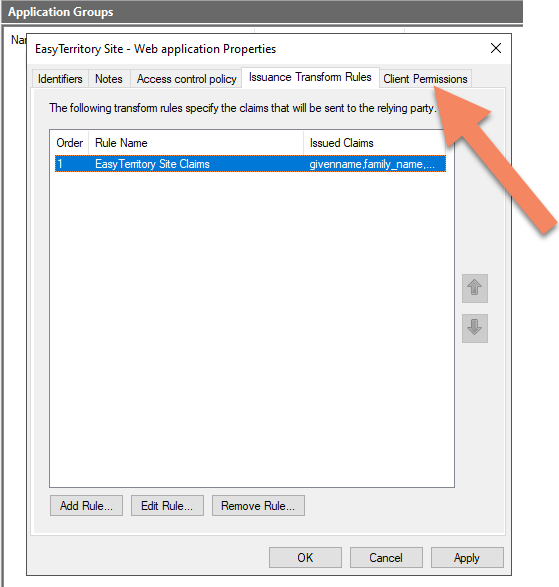
6) Back in the Web application Properties, select the table ‘Client Permissions’.
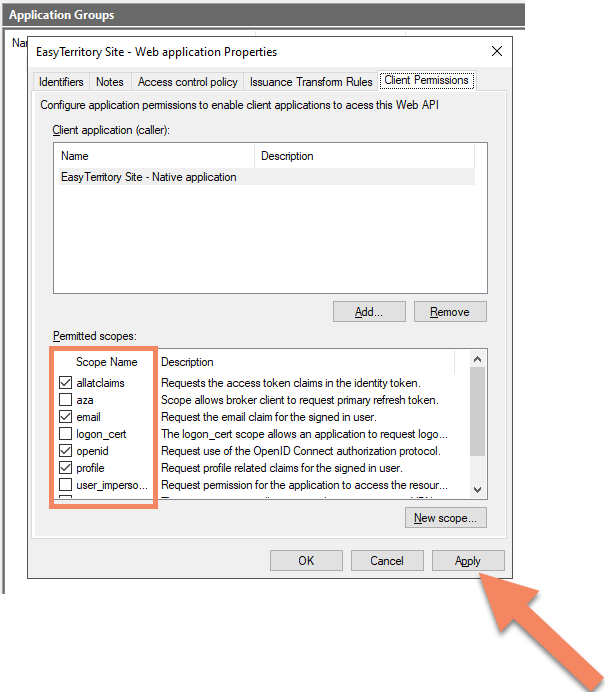
- Add the following scopes:
- allatclaims, email, openid, profile
- Click ‘Apply’, then ‘OK’.
5. Select Application
- Please Note: users trying to browse to EasyTerritory that do not have permission to view the application will be automatically signed out.
EasyTerritory Configuration Steps:
1. With an EasyTerritory ‘Admin’ account into EasyTerritory go to the admin settings panel and set the following properties. https://apps.www.easyterritory.com/GUID/app/index.html#admin
- Authority: https://adfs.DOMAIN.com/adfs
- Client ID: your application group client id
- Flag both ‘RP- initiated logout’, and ‘Suppress User Info?’
- Response Types: ‘id_token token’

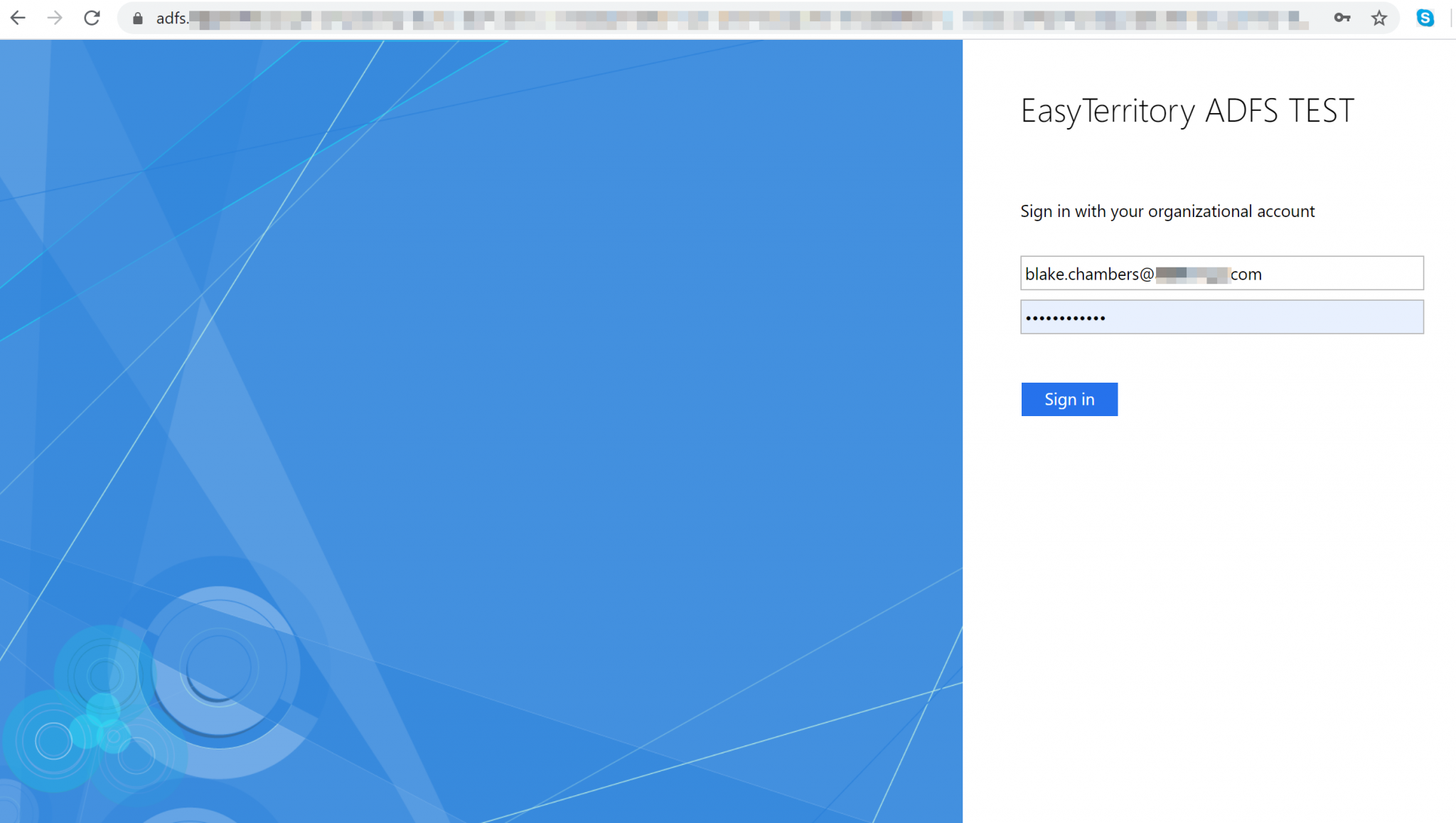
Save and when browsing to your EasyTerritory site you should be redirected to your ADFS sign on page.
For any questions or support please contact us! [email protected]